Content on this page
- What is Arcanic Observer
- How does Arcanic Observer work
- Exam settings
- Before the exam
- During the exam
- After the exam
- Observer recordings
- Oserver recordings – a specific student
- How long are Observer recordings stored?
Arcanic Observer
- Arcanic Observer is a monitoring solution for use during exam with invigilation, where students use their own computers.
- It must be downloaded by students onto their own computers before the exam begins.
- It can be used for exams where a strict lockdown of the computer (like Safe Exam Browser provides) is not necessary, but where monitoring of potential communication with external parties outside the exam room is needed.
- It works with any type of exam with invigilation (multiple choice or essay) and is compatible with both Mac OS and Windows operating systems. There is also an (albeit unsupported) client available for Linux.
- It cannot access data on the student’s computer.
How does it work
- The student downloads the program well before the exam and starts the recording before the exam begins.
- Observer then continuously captures screenshots of the active windows and programs that the student opens while completing the exam in Digital Exam.
- The recording can be monitored live, but it can also be reviewed after the exam if cheating is suspected.
- Monitoring stops either automatically 15 minutes after the exam ends (taking extended time into account) or when the student manually stops the monitoring.
Setting up the exam
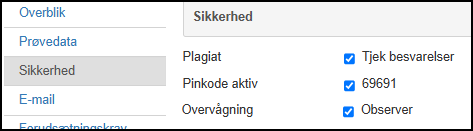
- When setting up an exam with times and other details in Digital Exam, the administrator must select the option “Observer” under the Security tab.
Before the exam
- On the exam itself, the student must download the Arcanic Observer client and then click “Start recording”. See the student guide here.
- Then the student can begin the exam as usual, whether it’s an MCQ or an essay/assignment response after having typed in the pin code.
During the exam
- Administrators with the required permissions can view students’ screens live through the administrative tool Observer Recordings
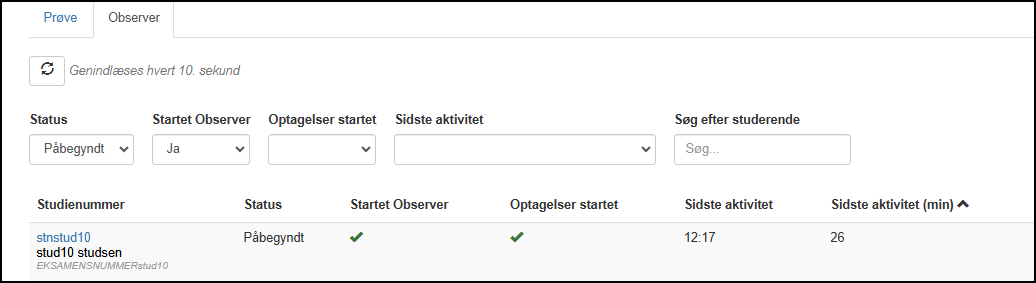
- Through the invigilator interface in Digital Exam, the student’s status can be monitored in relation to Arcanic Observer via various filters/views
- The “last activity (min)” shows the number of minutes since the last activity. If it shows 0 minutes, the student still has Observer running. If several minutes have passed, the student may have accidentally terminated Observer.
After the exam
- Arcanic Observer automatically stops recording 15 minutes after the exam ends.
- Students will gain access to their own recordings no later than 2 hours after the exam by opening the completed exam.
- Administrators can access the same recordings in Digital Exam via the Observer Recordings tool.
- All administrators with access to Observer Recordings can view all exams using Observer.
Observer recordings
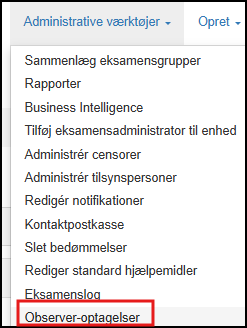
- Under the Administrative Tools tab, click on Observer recordings
(You need special access for this, managed by your university’s DE administrator)
- Here, you will find an overview of exams where Observer is enabled, with various sorting options (You can also search for students across exams and by exam.)
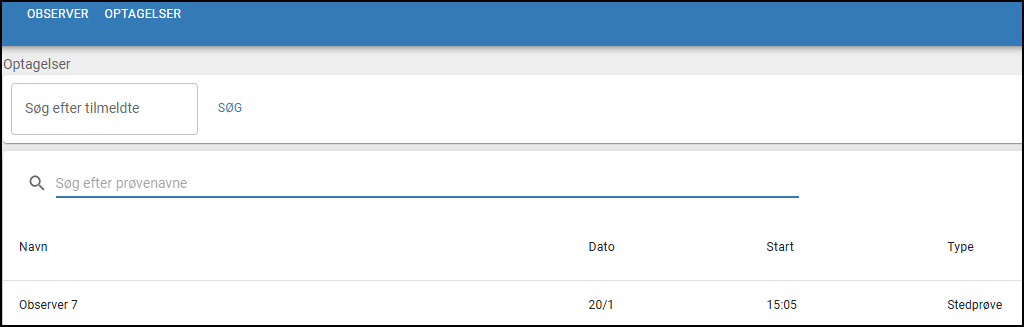
On the specific exam the administrator can
- mark if the recordings are not visible for the students
- get a casino-view of all the students screen
- see Submission time
- see Recording status (including gaps, meaning there were periods when Observer wasn’t recording)
Observer recordings – a specific student

- If a specific student stands out (for example due to gaps in recordings), administrators can open the detailed view for that student.
- A gap in the recording means Observer was unable to receive screenshots from the student’s screen (for example because the student closed Observer or closed the laptop).
The overview for a specific student includes:
- Exam start and end time
- Submission time
- Option to add comments or flag the recording for review by another person
- Timestamps for gaps in recordings (note: if the student starts recording after the exam has started, this will also appear as a gap)
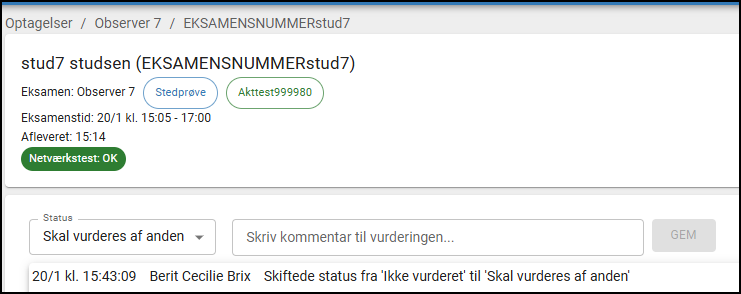
- The blue bar shows the duration of the student’s exam
- Number of sessions reflects actual interruptions in Observer recordings
- The red bar represents session 1, the initial recording that started before the exam
- The yellow bar represents session 2, a resumed recording after an interruption

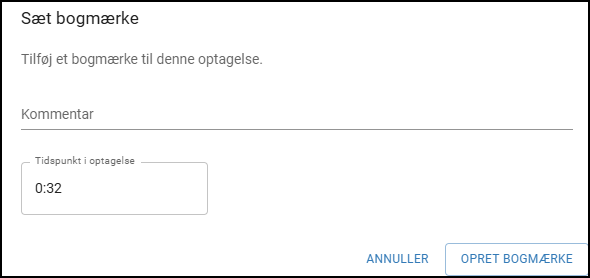
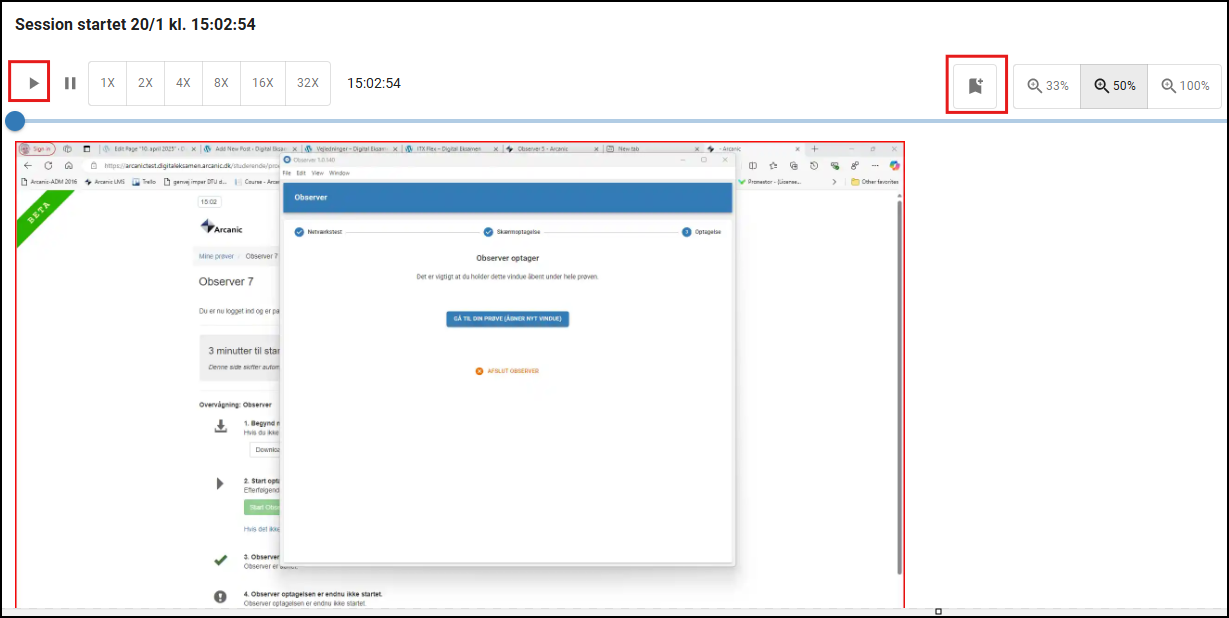
- You can play back the different sessions and mark bookmarks for suspicious behavior.
- Option to view screenshots either as a ZIP file or as a PDF. It can be configured whether the PDF should anonymize the students or not.
How long are Observer recordings stored?
Observer recordings are stored on Arcanic’s servers for one year from the date of assessment. After this period, the recordings are deleted unless a specific agreement has been made.
This takes effect as of 1 May 2026. Until then, no recordings will be deleted.