General information

Arcanic Observer
- is a monitoring solution for on-site exams, where you use your own computer
- takes screenshots of active windows and programs
- cannot access data on your computer
- supports both MacOS and Windows (if selected by your university also Linux)
- requires you to download a program, and in some versions of MacOS, you may also need to grant permission for screen recording in your system settings
How an Observer Exam Works in General
- Log in to DE (Digital Exam) and click on the exam
- The Observer client must then be downloaded and installed on your computer
- Click on Start Observer for this exam
- Go to your exam and await exam start (If the exam is set up with a PIN code, you will receive   it from the invigilator. It must be entered in Digital Exam in order to access the exam.)
- Upload your submission in Digital Exam and submit
- Stop Observer recording after submission
(Recordings automatically closes 15 minutes after the exam ends
- View your screenshots of the exam from your receipt in Digital Exam no later than 2 hours after the exam
Things to Keep in Mind
- You can download Observer, for example, the day your exam through “Try a demo exam” on the top of your DE screen
- There might be updates to Observer if you have downloaded the tool previously.
Updates ville happen automatically when you click on “Start recording” on an older version of Observer - Don’t close or interrupt Observer while the exam is in progress
- Don’t change the screen resolution while Observer is recording
- For your own sake do not use full screen as som operativ systems will prevent you from keeping an eye on the Observer icon and the red badge
- The screenshots in this guide do not cover all operating systems (the guide is based on Windows)
- You may also refer to the video at the bottom of the page.
Submission Flow for an Observer Exam
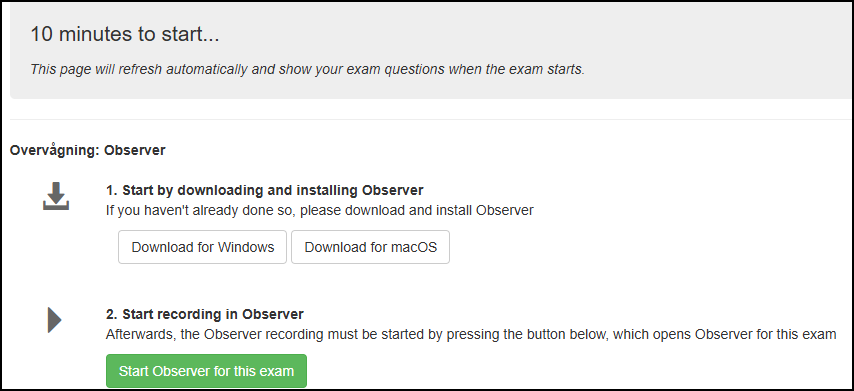
Click on the Exam
- Click on the exam i DE before exam start
Install Observer
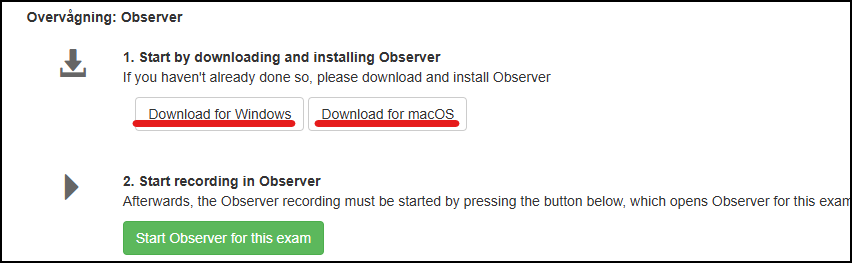
- Download Observer for your operating system.
- You can install Observer on your computer a few days before the exam by accessing the exam and download
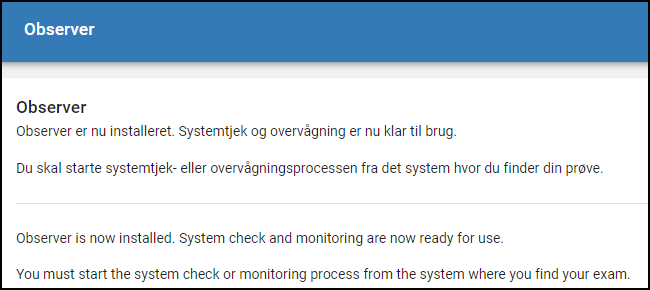
- Open/run the program and wait for it to be installed (if not already done).
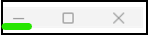
- Do not close this window (you can minimize it, but do not click the close button).
Prepare for Recording

- Click on “Start Observer for this exam”
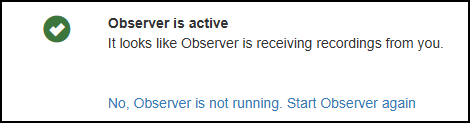
- If you have installed Observer in advance click on “Start Observer again”
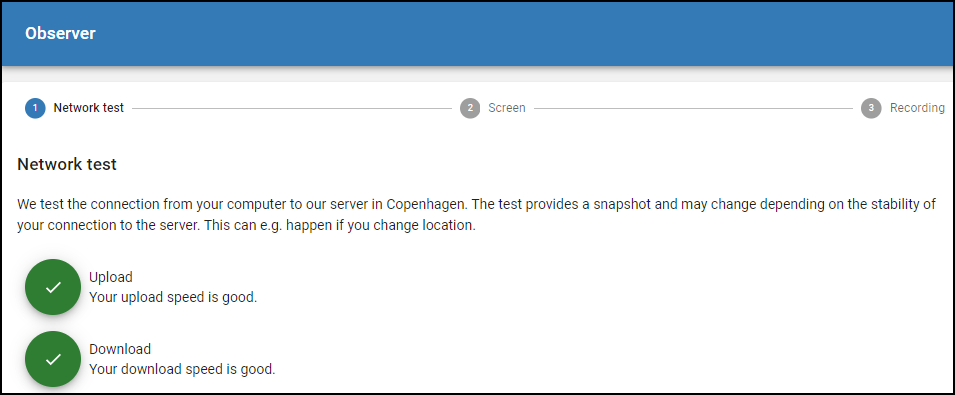
- The network test starts
(click “Next” at the bottom of the screen)
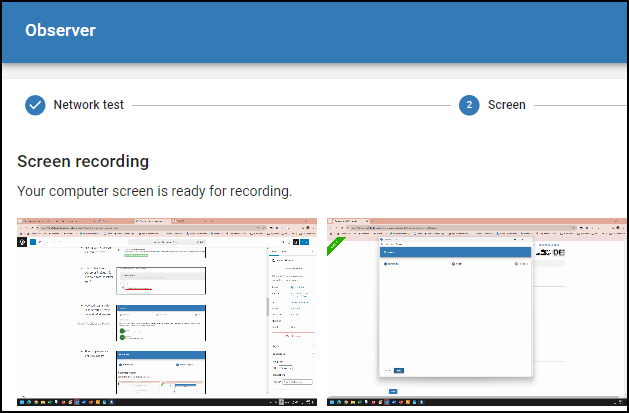
- Screen recording is ready (click “Next”)
Recording is in progress
- Is shown by the red text “RECORDING”
- is also often supported by the red badge in the icon (if you dock/task bar is visible)
- is also often supported by a red frame
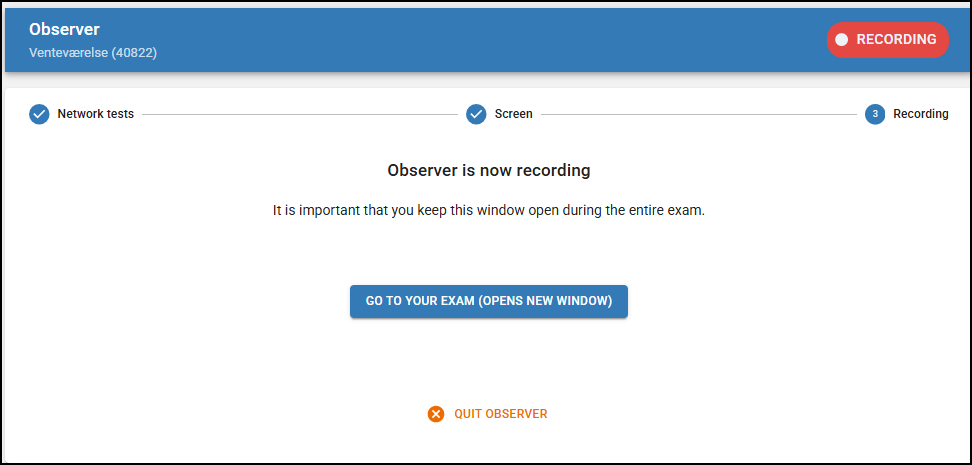

Please note: Do not close the window. If it is closed/terminated you can restart the recording, but to the administrator, it will appear as a gap in the recording
Go to you exam
- To access the exam, you can either minimize the window (click the line in the top-right corner) or click on “Go to your exam.”
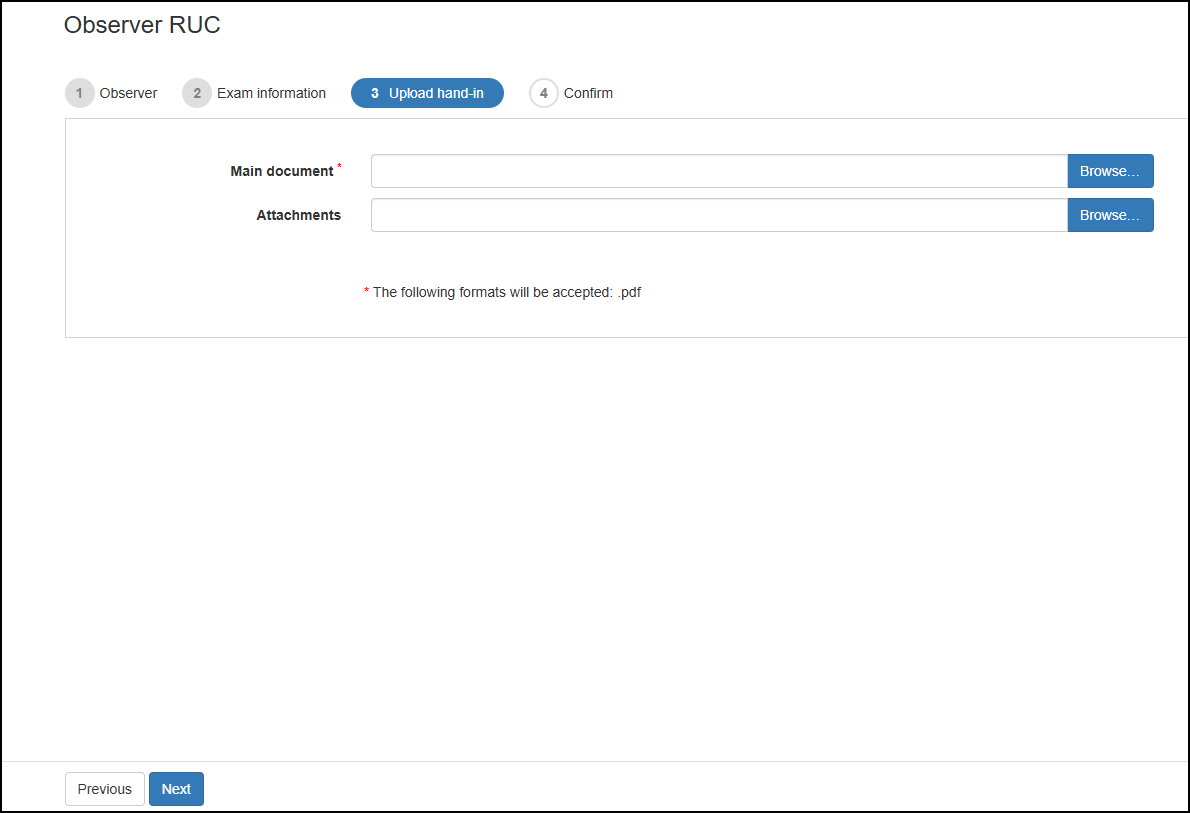
Upload and Submit
- If applicable, enter the PIN code and follow the submission flow
- Upload your submission in Digital Exam and click “Next”.

- If you’re completely done, check out and finish the exam
The exam is over (stop recording)
- The recording automatically stops 15 minutes after the exam ends (not after submission), and you can then click on “Finish Observer.”

- You can manually end the recording after submission by clicking on the Observer icon at the bottom of your screen (on the dock for Mac). It is marked in the red square.
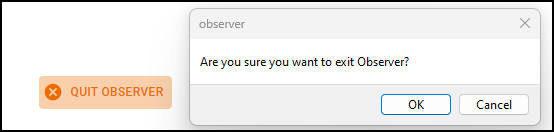
- Click on “Finish Observer.”

Receipt in Digital Exam
- You will see your receipt in DE and receive it by email.
Instruction Video
Windows user (Chrome) – danish interface
Mac user (Chrome) – danish interface
- Note: The first time Observer is started, it may take up to 30 seconds. It’s a good idea to download Observer the day before
- You may also need to grant permission for screen recording in system settings under “Privacy & Security”. However, this depends on your version of MacOS.
- See below for supported MacOS versions.
Note for MacOS
Only the latest versions of MacOS are supported. See more about this via this link.
Note for Linux OS
If Linux is selected as an option by your university, it is possible to use it for an exam with Observer. However, please note that the client is not supported and that:
- It only works as a Debian package, i.e., for example on Ubuntu, Debian, or Mint
- The taskbar icon does not get a red badge and the red border is often not supported
- The Observer window is the most certain indicator that Observer is actually recording